
Method example
Contact form
Journey starts here
Keyboard and visible focus
Check access to controls and complete a task without a mouse. See why something that looks like a button may be skipped.
Free CometWeb ebook
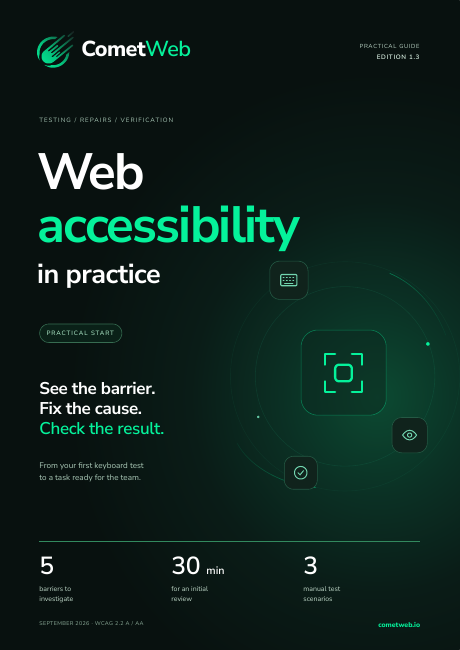
Open a menu. Fill in a form. Correct an error. This guide helps you find barriers in everyday journeys and describe what the team should change and how to check the fix.
We will send a link to verify your email address.
Start with the right question
Choose one important task and try completing it with a keyboard. Check whether you can see the focused element, operate controls and return from an open dialog. Record where progress stops.
Then review form labels, instructions and error messages. Visible text beside a field is not enough to assess its accessibility. The guide connects the symptom to reproduction steps, a relevant criterion and a follow-up check.
The field has focus. Can you see it?
Inside the guide
Leave with a documented barrier and a clear condition for retesting.
Check access to controls and complete a task without a mouse. See why something that looks like a button may be skipped.
Work through fields, icons and close buttons. Distinguish visible text from information communicated to assistive technology.
Check readability and the page at increased zoom. Describe a form error so the location and correction are clear.
Connect the barrier to a journey and criterion. Repeat the task after deployment instead of relying on a completion claim.

A real excerpt. A practical exercise.
The public excerpt examines form labels. The package also includes before-and-after component examples. Compare their behaviour, then check the same kind of element on your website.
One access link. The complete package.
Free materials in English. Verify your email, choose a format and download your files.
29 pages. For reading, saving for later or printing.
HTML for reading in your browser. Revisit the guide on your phone or computer.
Connect reproduction steps, evidence and the expected result. The examples show specific interface behaviours that can be compared.
Who it is for and when to use it
Designers get interface checks, developers get behaviour examples and reviewers get a way to verify fixes. The material starts a review; it does not replace a complete audit or user research.
No. The exercises help you find and describe selected barriers. They are not a certificate or a complete accessibility audit, and they do not replace research with users.
About the publisher: CometWebNo. Some issues require following a task, assessing information and testing interface behaviour. Tool results in this guide are starting points for further checks.
Include the page address, task, reproduction steps, actual result, expected behaviour and evidence. Add test conditions and the relevant criterion when established.
The PDF guide, an HTML version for reading on your phone and a ZIP package with worksheets. The guide and working materials are in English. Where included, original evidence and historical appendices retain their source language and are labelled.
Enter your email address. We will email a link to verify your address. Open it to unlock the guide and worksheets.
Verification confirms that you can access the mailbox. Temporary email addresses are not supported. Downloading the ebook does not subscribe you to a newsletter.
No. The exercises help you find and describe selected barriers. They are not a certificate or a complete accessibility audit, and they do not replace research with users.
Free CometWeb ebook
Free, no newsletter subscription