

You launched the new site on Friday, the client loves the design, and two weeks later the homepage still isn't in Google. The staging noindex went live with everything else, and nobody opened the page source after the switch.
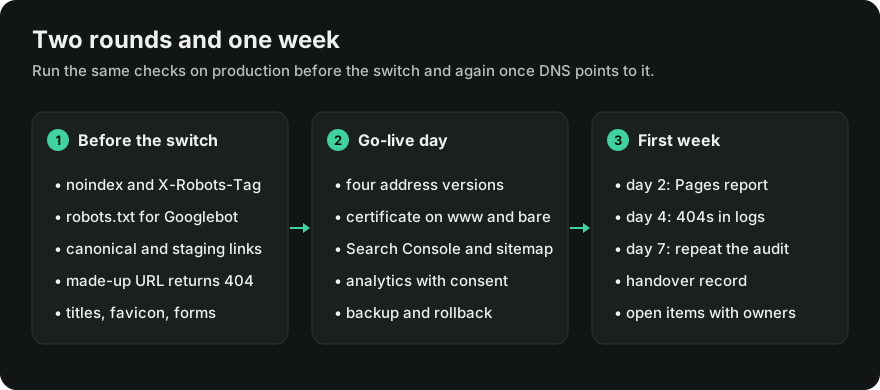
In November 2026 I ran a script over 100 popular homepages, and almost a third of them still had a problem a launch checklist should have caught. Below is the list I'd run on any new site, in two rounds, with a free way to check every item and a handover record for your client. The data and scripts are in the research pack.
What a website launch checklist covers
A website launch checklist is the list of technical checks you run on a new site twice, once on production before the domain switches over and once right after it goes live. It decides whether crawlers can reach your site and whether visitors hit broken basics, and it ends with the handover to your client.
This guide is about a brand-new site. Moving an existing site to new URLs needs a redirect map for every old address, so it gets its own migration checklist. And if you need the document you send after a full review, I've covered that in the guide on how to prepare a client-ready website audit report.
Almost a third of popular homepages still have a launch leftover
For each site I loaded the homepage, robots.txt, the sitemap, the favicon, one made-up URL and the http:// version. 27 of 100 had at least one real problem other than the favicon, and four more made the list only because the favicon didn't load. Some servers refuse icons to bots, so treat the combined 31 as an upper bound. The most common was a made-up URL that answered 200, a success code for a page that doesn't exist, and half of those sites did it by redirecting to the homepage.
The serious leftovers were rare. One homepage carried a noindex and one robots.txt blocked Googlebot from the whole site, and either one is enough to keep a site out of Google. I didn't find a single homepage that linked to a staging host or pointed its canonical at one. That's good news for sites that have been live for years, but launch day is when those leftovers are freshest, so they stay on my list.
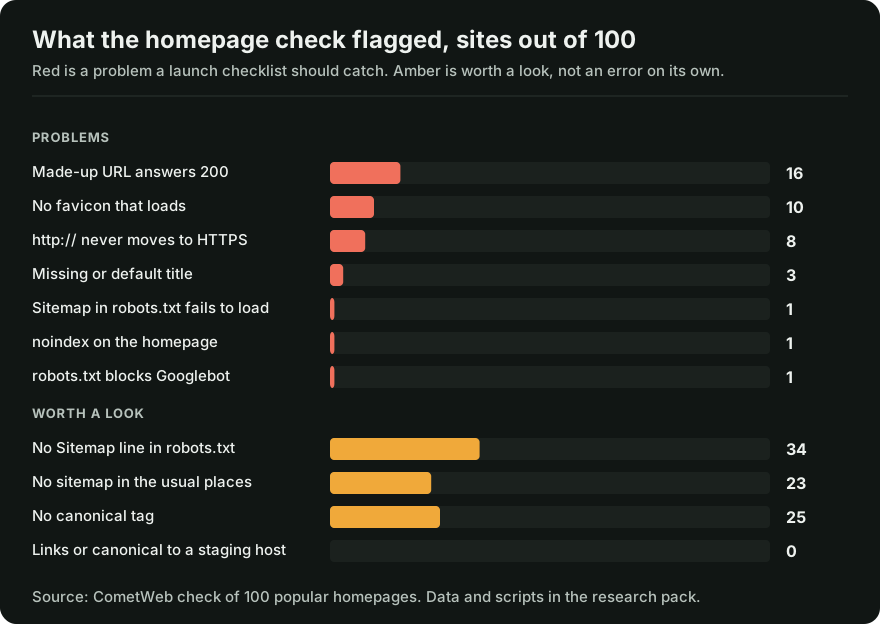
A missing Sitemap line sits in the "worth a look" group, because you can submit a sitemap in Search Console instead. My first run a month earlier counted it as a failure and pushed the result to almost half. I've moved it, and now I count only things that are wrong on their own.
Pre-launch checklist: indexing and crawling
The pre-launch round makes sure search engines can find and index your new site. Run it on production, because staging is locked down on purpose and those locks travel with the code. You can reach the production server through a hosts-file entry or a temporary URL before the domain points at it.
- ☑ No
noindexon public pages. Open the page source, search fornoindex, then check the response headers in DevTools > Network forX-Robots-Tag. Google's documentation on blocking indexing lists both places. - ☑ robots.txt lets Googlebot in. Read the group that applies to Googlebot, because a group written for it overrides the
*group. Two sites in my sample blocked every bot under*but let Googlebot in through its own group. A leftoverDisallow: /from staging is the classic one, and our robots.txt checker reads the file for you. - ☑ The canonical tag points to the production address. It should be an absolute URL on the final host, on
https://, and it shouldn't mention the staging domain or an old preview host. - ☑ No links to staging are left in templates. Search the page source for your staging host and
localhost, since URLs hard-coded in menus and forms survive a launch easily. - ☑ If you use a sitemap, it loads and lists the pages you want indexed. Declare it with a
Sitemap:line in robots.txt or submit it in Search Console, as Google's guide to building a sitemap describes. - ☑ Staging sits behind a password, so it can't compete with the real site in search once both are public.
One trap catches people who try to be careful. If you block a page in robots.txt and also add noindex, Google never sees the noindex, because it can't fetch the page. Use noindex to keep a page out of the index and robots.txt to save crawling.
Signals that don't know about each other caught me too, because the cometweb.io sitemap kept listing eight posts I'd hidden from the blog. I wrote up how they clash in canonical, sitemap and robots.txt explained.
Website QA checklist: errors, titles and what visitors see
The QA round is still round one, run on production before the switch. It covers what visitors and crawlers see when something goes slightly wrong, like a mistyped address or a form that sends to nowhere. These are small things, but your client'll notice them on day one.
- ☑ A missing page returns 404. Type
yourdomain.com/this-page-does-not-existand check the status in DevTools > Network. The page can look friendly, but the server should answer 404, or 410 for content you removed on purpose. - ☑ Every page type has its own title. Google's title link guidelines name "Home" as a vague homepage title to avoid. Check one page of each template, for example a post and a product.
- ☑ The favicon loads. Google shows your favicon in search results and wants it linked from the homepage. A favicon generator prepares the files, but you still check the deployed link.
- ☑ Forms send to a real inbox. Fill in every form once and check that the message lands where your client expects it, autoresponder included.
- ☑ The basics work on a phone and with a keyboard. Open the menu on a real phone, then tab through the homepage and the contact form.
- ☑ The admin panel is locked and debug mode is off. Remove test accounts and default logins, turn on two-factor sign-in, and check that your error pages don't print server paths.
Why does the 404 item matter on a new site? With a catch-all redirect, old links and deleted test pages all land on the homepage with a 200, so you never learn they're broken. Google calls that a soft 404, an error page served with a success code.
Here's how to tell the cases apart.
| Request | Good response | Bad response |
|---|---|---|
| Page that never existed | 404 with a helpful page | 200 with the homepage |
| Page removed for good, no replacement | 404 or 410 | 301 to the homepage |
| Old URL with a clear replacement | 301 to the replacement | 404 while the replacement exists |
Website go-live checklist: HTTPS, redirects and tracking on launch day
Run the go-live round when your DNS points at production, then repeat it a few hours later. DNS caches update at different speeds, so some visitors reach the old server for a while.
- Check all four versions of the address. Type
http://,http://www.,https://andhttps://www., and check that your canonical address loads directly while the other three reach it with a permanent redirect. The redirect checker shows every hop, one hop is the target, and I explain why in redirect chains. - Confirm the certificate covers both
wwwand the bare domain, because a certificate for one of them breaks the redirect from the other before it starts. - Verify the site in Google Search Console and submit the sitemap. Google's help page on verifying site ownership lists the methods, and I prefer DNS verification, because it survives a template change.
- Test analytics with the consent banner. Accept in one fresh session and reject in another, then watch tag activity in DevTools and GA4 DebugView. One page view should fire once, so look for duplicate tags.
- Take a backup and write down how to roll back. If your launch replaces anything on an existing domain, copy the old site and its database and check that the copy restores, and lower the DNS TTL a day early so going back doesn't take hours. Note which version is live and who can revert it, because a launch-day fix is calmer when the way back is known.
Eight homepages in my sample answered the plain http:// address without sending visitors to HTTPS, even though HTTPS worked on every one of them. The fix is usually one redirect rule on the server or the CDN. If you add the rule, check the certificate first, because a redirect to a host without a valid certificate swaps a quiet problem for a loud one.
Structured data, mixed content and link previews
These three rarely break your launch, but they show up a week later when someone shares your link or Search Console reports an error, so I check them with the go-live round, because each one takes a minute.
- ☑ Structured data passes the test. Run your homepage, one service or product page and one post through the Rich Results Test, and if your old site had schema, check that it made it across.
- ☑ Nothing loads over
http://. Look in DevTools > Console for mixed content warnings, which usually come from images you pasted in before HTTPS was on. - ☑ Key pages carry Open Graph tags. Without
og:title,og:descriptionandog:imagefrom the Open Graph protocol, your link on LinkedIn shows a random image and title.
The first week after a new website launch
For the first week I use a simple rhythm of day 2, day 4 and day 7. Agree it with your client up front, because it's your review schedule and has nothing to do with Google's timing.
- Day 2: open Search Console > Indexing > Pages and Sitemaps, and note whether Google has read your sitemap yet. A new site needs time, so record the state without panicking.
- Day 4: look for 404s in your server logs and in Search Console. Redirect an old URL when there is a relevant replacement, and leave a genuine 404 when there isn't.
- Day 7: run the audit you ran before launch, with the same settings, and compare the two.
I'd run the day 7 audit in CometWeb Insight, our website audit app. It checks performance, SEO, accessibility, security and CO₂e and orders the findings under "What to fix first". You can compare two runs with the same settings, see what launch day changed and export the results as a PDF report for the client.
How to hand over a new website to the client
A website handover is the moment the client takes responsibility for the site, so give them a one-page record in three parts.
- What we checked before and after launch: the URL, date, result and evidence for each item, such as a screenshot. I don't count a tick without a recorded result.
- Who owns which account: domain, hosting, Search Console and analytics, each with a named owner and working access, plus any agency access under the support agreement.
- What's still open: each item with an owner, a due date and the condition for closing it.
Your wording matters, because clients repeat what you say to their boss. Here's the difference.
- Bad: "The site is indexed and SEO-ready."
- Good: "Public pages allow crawling, the sitemap loads and lists the pages we agreed on, and Search Console shows it was read. Indexing is up to Google, and we'll check the Pages report on day 7."
You can copy the handover record from the research pack.
Mistakes that break a new website launch
A broken launch usually starts with a setting that was right on staging and wrong in production. These are the three I'd watch for.
- Copying the staging database as is. On WordPress, "Discourage search engines from indexing this site" in Settings > Reading lives in the database and travels with it, so check it after every import.
- Hard-coding the staging address. Canonicals and form actions written with the full staging URL keep pointing there after the switch. Google recommends absolute canonicals in its canonical guide, because relative ones cause trouble if a test site ever gets crawled, so use absolute production URLs.
- Leaving the old domain alone. If the client had a site before, map old URLs to relevant replacements, which is where the migration checklist takes over.
Final thoughts
Every item on this list takes a minute. The hard part is running it on production after the switch, when everyone thinks the job is done.
So before you switch the domain, open robots.txt, the page source and a made-up URL on the production server. After go-live, type all four versions of your address and send the client a handover record with results. If you want the day 7 audit and the client report in one place, you can start a free account in Insight.
Frequently asked questions
When should I start the pre-launch website checklist?
Start a few days before go-live, on the production server, because indexing settings and redirects often differ between staging and production.
Do I need to submit my sitemap to Google Search Console?
You can submit it in Search Console or declare it with a Sitemap line in robots.txt, and either works. Small sites with good internal links get found without one.
How is a launch checklist different from a migration checklist?
A launch checklist is for a new site without history, so it focuses on indexing and basics. A migration checklist adds a redirect map from every old URL and a comparison of traffic and rankings before and after the move.
Who should run the website QA checklist, the agency or the client?
The agency runs it, because it controls the server and the code. The client gets the handover record with results and checks the business items, like whether form messages reach the right inbox.
How long after launch should a new site appear in Google?
There's no fixed time. Google's page on recrawl requests says crawling can take from a few days to a few weeks. Check the Pages report and the sitemap status, and use URL Inspection for the homepage if nothing has moved after the first week.
Do I need a backup before launching a brand-new site?
Yes, if the launch replaces anything on an existing domain, even a simple landing page. A copy of the old version and a lowered DNS TTL let you go back in minutes when something breaks on launch day.
Sources
- Google Search Central: Block search indexing with noindex. Where
noindexcan live and why robots.txt hides it from Google. - Google Search Central: Introduction to robots.txt. What robots.txt controls and what it doesn't.
- Google Search Central: Build and submit a sitemap. The Sitemap line in robots.txt and Search Console submission.
- Google Search Central: Consolidate duplicate URLs. Absolute canonical URLs and the test-site warning.
- Google: How HTTP status codes affect Google's crawlers. 404, 410 and soft 404 errors.
- Google Search Central: Influencing title links. Why "Home" is a weak homepage title.
- Google Search Central: Define a favicon to show in search results. Favicon requirements.
- Search Console Help: Verify your site ownership. Verification methods.
- Google Search Central: Ask Google to recrawl your URLs. Crawling takes days to weeks.
- Google Analytics Help: DebugView. Checking events while you test.
- Google Search Central: Learn about sitemaps. When a small, well-linked site can skip one.
- Google: Rich Results Test. Checking structured data on a live page.
- MDN: Mixed content. Resources loaded over
http://on an HTTPS page. - The Open Graph protocol. The
og:title,og:descriptionandog:imagetags. - CometWeb: launch checks on 100 popular homepages. Results per site, scripts and data.
Disclosure: CometWeb Insight and the free tools under /tools are products of CometWeb, the publisher of this blog.